
Let’s pretend you’re an Administrator for several different Instructors, who all request that they be copied on your notification emails when you send certifications out to students. But because you have several teachers, it’s not feasible to just list out every teacher’s email on your notification email regardless of what class a student is in. What to do? There’s a better way to set this up by using merge fields, to dynamically populate CC and BCC fields with unique email addresses. Here’s how:
Step 1: Add the teacher’s email address as a new merge field, on your upload list: By adding the correct teacher’s email address for each certificate record on your upload list, you can leverage the power of Merge Fields to dynamically populate the correct email address in the CC or BCC field of your notification email.
Step 2: In “Build”, add a new merge field to your Certificate Template and name it “Teacher email” (or whatever you want)… and then Hide it! In Build, open up the Certificate Editor of the correct template, select “Insert [Merge Field]”, and on your certificate enter the new name of this merge field (In our example, enter “Teacher Email”). Once you have updated the name, select the “Eye” button on the top tool bar to hide this field so that it’s not visible on your certificate. This allows you to create a merge field that will then be available for your emails, but will not be visible on the actual certificate itself:
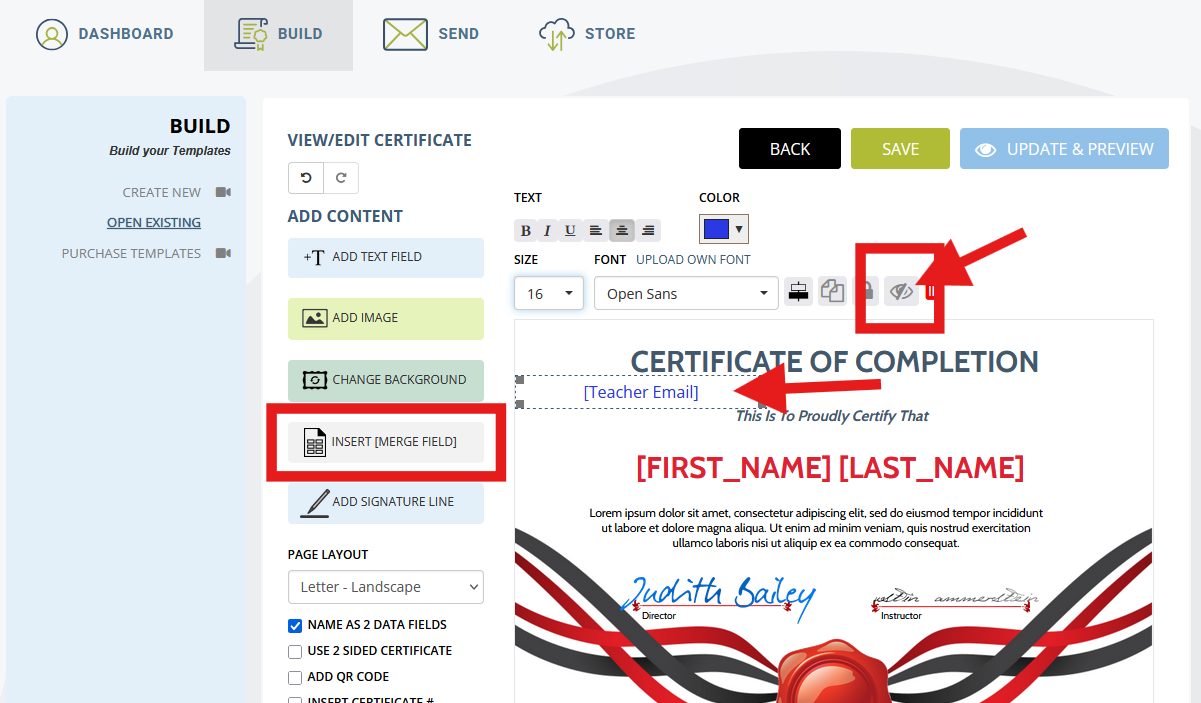
NOTE: you can absolutely choose to have the teacher’s email address visible on your certificate if you want. However most people opt to not visually show this email address on the actual certificate. Save these changes to your template.
Step 3: Add “Teacher Email” as a merge field in the CC, or BCC fields of your notification email. In Build again, select “View/ Edit Email” for the template that you are working on to open up the email editor. Click into either the CC or BCC fields in the email editor, and select the “[]” button to the direct right of the field and then choose “Teacher Email” as the field you wish to add:
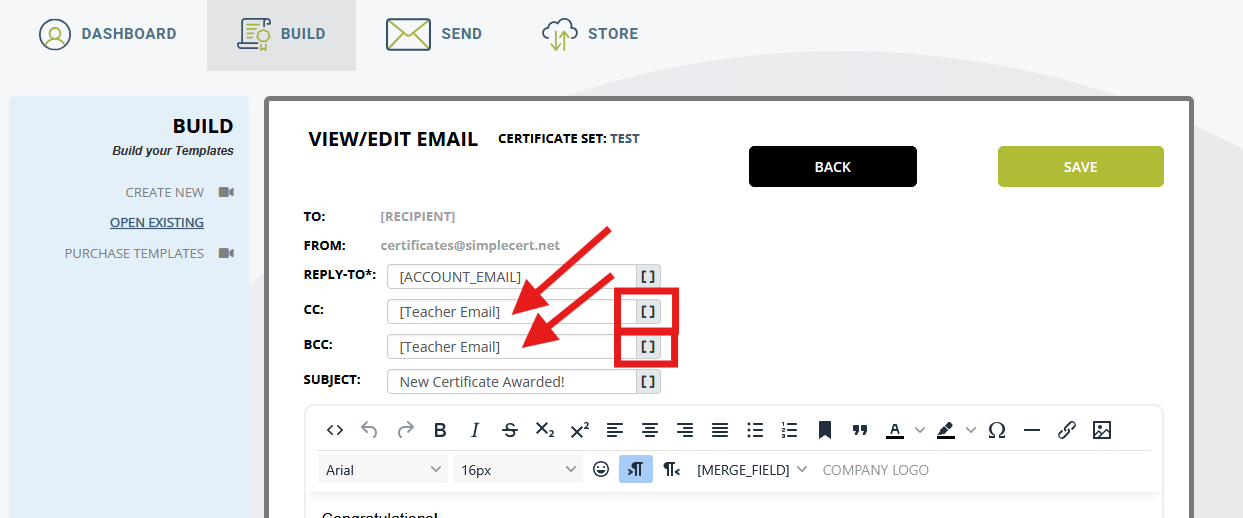
Save your changes and you’re done! You’ve now automated the population of the Teacher’s Email address into the CC or BCC fields of your notification email, which will now auto-populate (and send out) emails based on addresses you’ve included in your upload list. This is a great way to automate, and cut down on additional time and effort to ensure the correct people are included on specific emails.