
Easy! There’s two ways you can easily print out certificates that you have already created, depending on if you want to print out certificates individually or if you’d prefer to print out all certificates from an existing project.
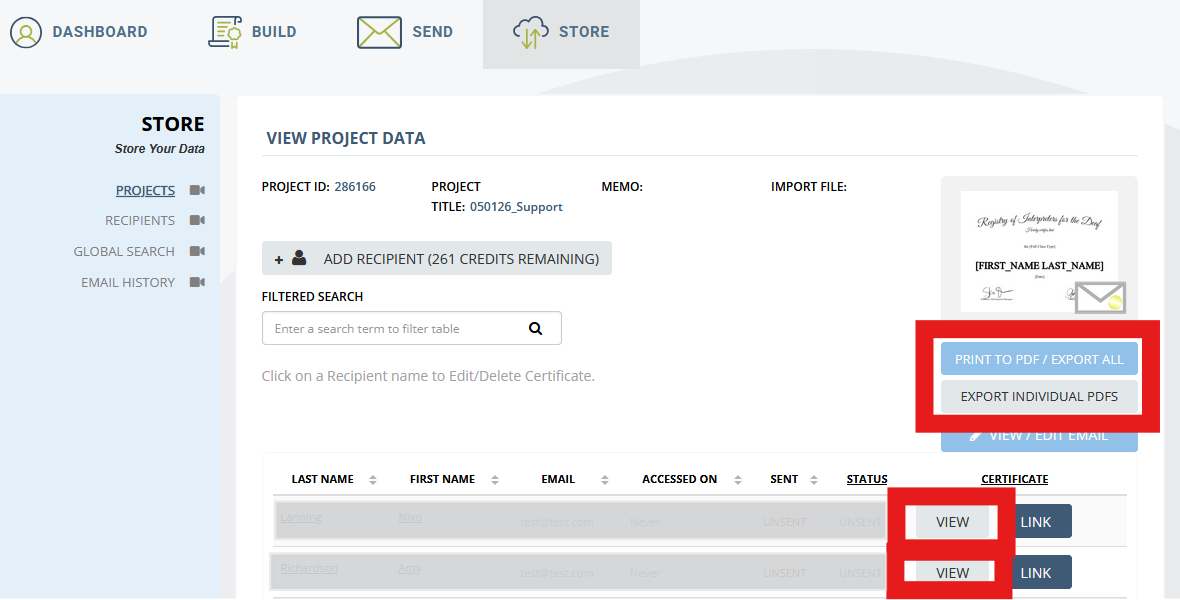
Navigate to “Store” in your SimpleCert account (where all of your certificate data and reporting resides), and then select the “Projects” link to open up all Projects that you’ve created in yoru account. Locate the project that contains the certificates that you wish to print, and click to open that project up. Once in the correct Project, on the right side you will see two buttons below the thumbnail image of the Certificate template:
- Print to PDF / Export All – Select this button if you wish to create a PDF file that will contain all certificates from that project, and by opening this PDF file you can then directly send all of your certificates directly to your printer. If you are sending your certificates to a print shop for professional printing, select this option to provide them with all individual certificates, conveniently saved saved in a single PDF document.
- Export Individual PDF’s – Selecting this button will generate a zip (compresssed) file that will contain individual PDF files, of every certificate from that project. This is helpful if you want to print out specific certificates individually, need to download for later use, or need to provide individual files to different people
Lastly, every certificate within a project can be viewed – and directly printed from your PDF viewer – by clicking on the “View button to the right side of a person’s name:
With these 3 options, you have the flexibility to print exactly what certificates you need, from any Project that you have created. Enjoy!